What Size Should I Resize My Photos for Email (Tested Recommendations)
Table of contents
What Size Should I Resize My Photos for Email (Tested Recommendations)#
Ever hit send on an email with photos attached, only to see “Attachment too large”? Or the message goes through, but the recipient says it took ages to open. That’s when the question hits: what size should I resize my photos for email?
This guide uses the limits people commonly encounter: Gmail’s 25 MB attachment allowance, account-specific mail-server limits, and mobile photos that may start at several megabytes each. The practical target is simple: make each photo small enough to send quickly while keeping it clear on phone and desktop screens.
Why Photo Size Matters in Email#
Typical limits you may run into:
- Gmail: up to 25 MB of attachments; larger files are sent as a Google Drive link
- Outlook and other providers: the limit can vary by account or mail server
- Work and school inboxes: administrators may enforce a lower limit
The tricky part is that a single smartphone photo can be 3-5 MB. Attach five and you are already close to Gmail’s cap. Beyond limits, there’s usability:
- Mobile recipients hate waiting 10–15 seconds for big attachments
- Firewalls may block oversized files entirely
- Inbox storage fills quickly with 5 MB photos
Bottom line: resize dimensions first, then compress. A 3 MB photo can often become about 200 KB while still looking clear in an email.
Best Image Size for Email: A Practical Sweet Spot#
- Dimensions: 600–1200 px wide
- File size: 150–300 KB per photo
- Format: JPEG for photos, PNG for logos/signatures
Rule of thumb: keep attachments ≈ ≤250 KB each. For email signatures, stay ≤100 KB.
The embedded DPI value does not control how large a photo appears in an email. Pixel dimensions and file size matter here. Changing an image from 300 DPI to 72 DPI without changing its pixels will not make the visible photo smaller or meaningfully reduce the attachment.
How to Resize Photos for Email Attachments#
Step 1: Fix Dimensions Before File Size#
Reducing width from 4000 px → 1000 px can shrink file size by 70–80% before compression.
- Regular inline or attached photos → 800–1200 px wide
- Signature graphics → 300–600 px wide
Use Resize Image Dimensions when you want to set a specific width while keeping the original aspect ratio.
Step 2: Compress Without Killing Quality#
- Windows/Mac: export or save as JPEG and adjust the quality until you’re near 200–250 KB
- iPhone/iPad (Mail app): it prompts Small / Medium / Large—Medium (~150 KB) or Large (~250 KB) works well
- Android: share via gallery or export smaller from Google Photos, then fine-tune KB with an online tool
If the dimensions are already suitable, compress the image to reduce its attachment size without changing the email layout.
Step 3: Use an Online Tool for Exact KB#
Most apps resize by percentage or pixels only. To hit an exact target, use the 200KB photo resizer or enter another target on Photo Resizer in KB.
Practical target examples
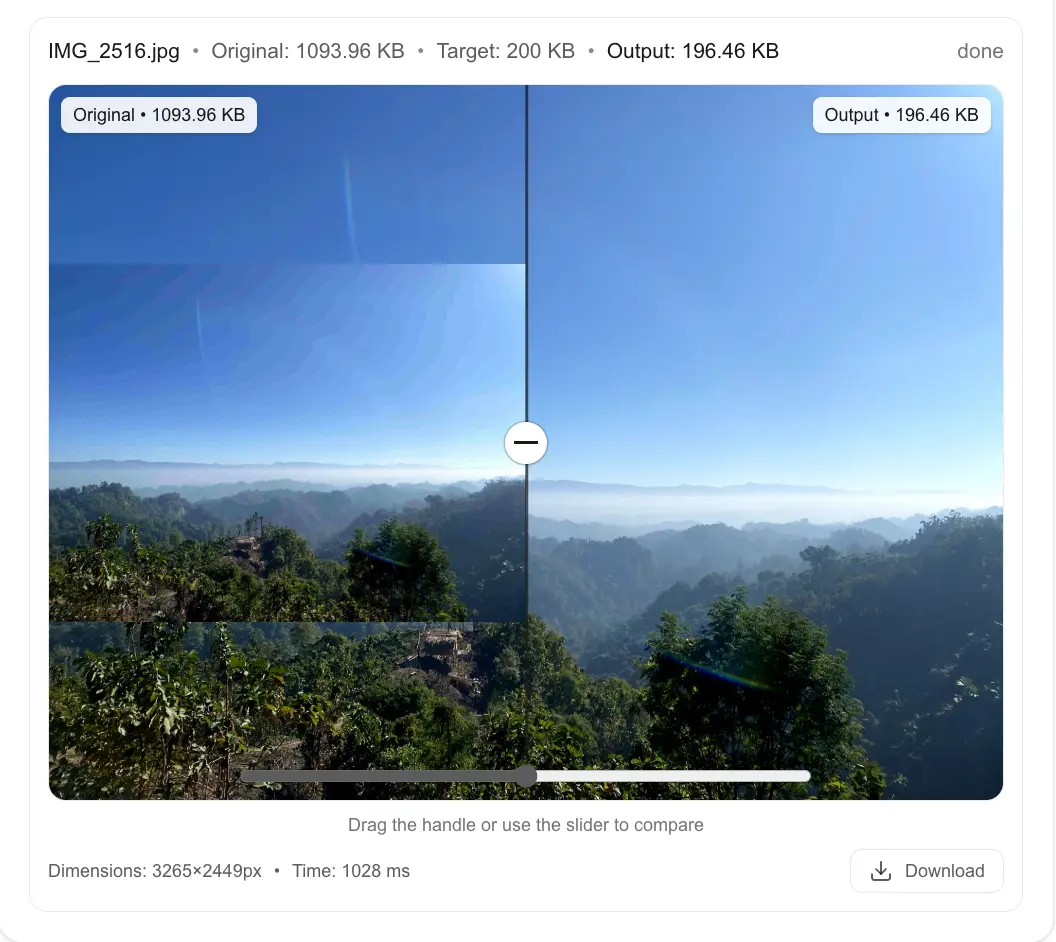
- Large phone photo → resize to about 900×675 px and target roughly 200–250 KB
- Landscape photo → resize to about 1000×750 px and target roughly 200–300 KB
- Detailed camera photo → resize to about 1200 px wide and inspect the result before attaching it
Step 4: Resize by Device (Fast Paths)#
- iPhone/iPad → Share → Mail → choose Medium/Large
- Android → export smaller from the gallery or use Photo Resizer in KB
- Desktop → Paint (Windows) / Preview (Mac) to reduce width → finish to exact KB online
Step 5: Batch Resize for Multiple Photos#
Sending many photos? Don’t resize them one by one.
- Open the Bulk Image Resizer
- Set a shared width, such as 1000 px
- Choose a target size when every image must stay near the same KB limit
- Download the completed images together
This makes it easier to keep the combined attachment size below your provider’s limit.
Step 6: Email Signatures That Load Fast#
- 300–600 px wide
- ≤100 KB total
- PNG for logos/flat graphics, JPEG for headshots/photos
- Avoid transparent PNGs at huge dimensions—they balloon file size
For a handwritten signature or scanned signature image, use the Signature Resizer to crop blank space and target the required dimensions and KB size.
Troubleshooting: Why Photos Still Fail#
- Dimensions still huge (e.g., 4000 px wide after export)
- Pixel dimensions are still too large even though the DPI metadata was changed
- EXIF/metadata bloat (adds KBs; many tools can strip it)
- CMYK color profile (convert to RGB for screens/email)
- No batch process (a few 5 MB outliers can break the whole send)
Comparison: What’s the Best Way?#
| Method | Pros | Cons |
|---|---|---|
| Desktop apps | Full control, offline | Manual, slower |
| Mobile apps | Quick, convenient | Hard to hit exact KB |
| Online tools | Fast, exact KB control | Page must load first |
For most people, Photo Resizer in KB is the fastest path to reliable 200–250 KB results.
Conclusion#
So, what size should you resize your photos for email? Aim for 800–1200 px wide and 150–300 KB per image. That combination keeps your emails fast, your images sharp, and your recipients happy—across Gmail, Outlook, and beyond.
For exact file-size targets, use Photo Resizer in KB, set the KB value you need, and check the downloaded file before attaching it. For multiple photos, use the Bulk Image Resizer instead.

Frequently Asked Questions
What size should I resize my photos for email?
800–1200 px wide and 150–300 KB per photo hits the sweet spot.
How do I resize photos for email attachments?
Reduce width first, then compress. For precise targets (e.g., 200 KB), use Photo Resizer in KB.
How to resize iPhone photos for email?
Share via Mail and pick Medium (~150 KB) or Large (~250 KB). For exact KB, export smaller and use an online resizer.
Can I batch resize multiple photos?
Yes. Export all to ~1000 px width, then use a KB-based tool to set them to ~200 KB each.
What’s the maximum attachment size for Gmail and Outlook?
Gmail allows up to 25 MB of attachments in a message before switching larger files to a Google Drive link. Outlook limits vary by account and mail server, so smaller attachments are safer.
How do I resize images for an email signature?
300–600 px wide, ≤100 KB, PNG for logos, JPEG for photos.
Does Google Photos resize for email automatically?
Not for attachments. It compresses shared links, so resize before attaching.