How to Resize a Bunch of Photos at Once to Exact KB
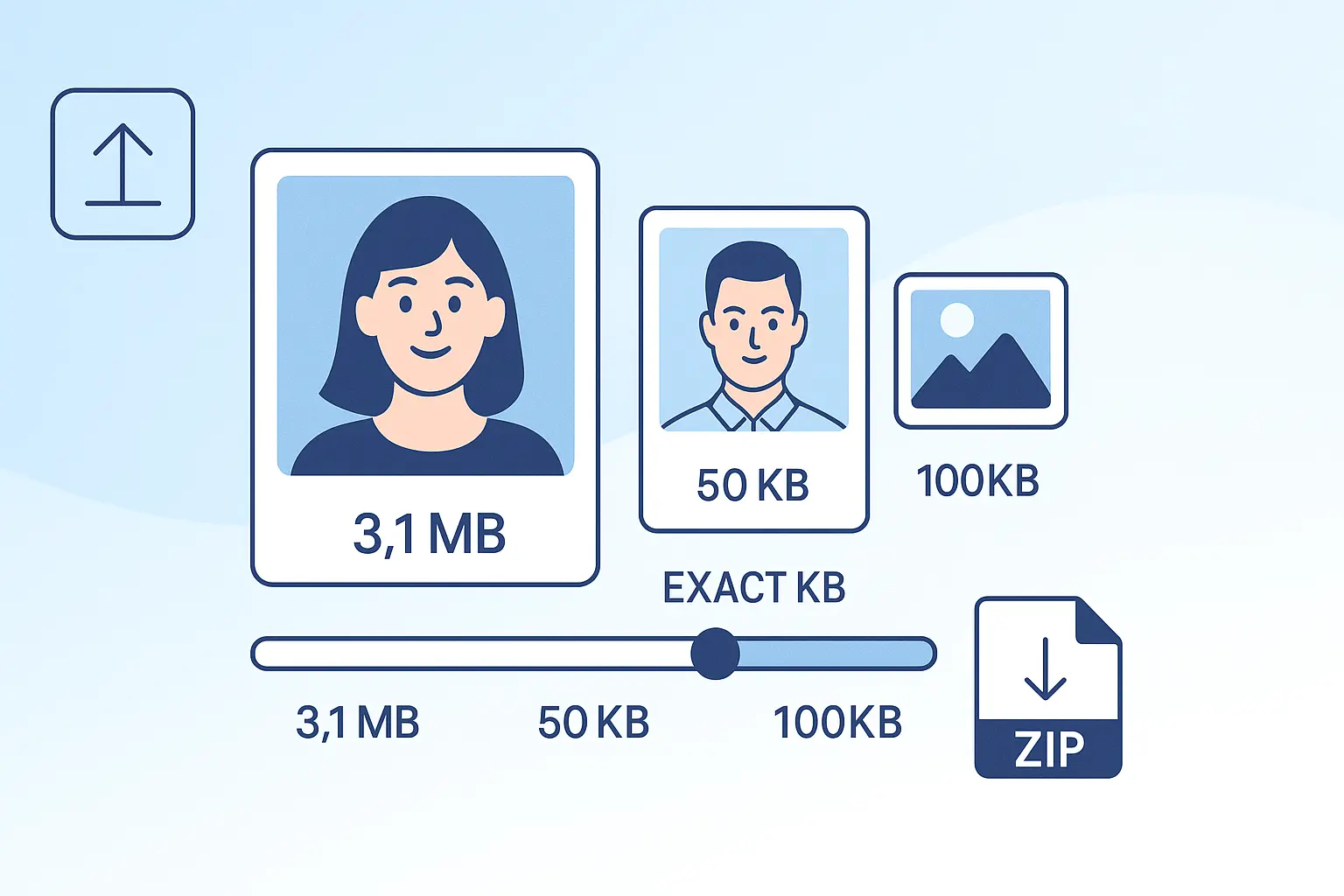
Table of contents
Resizing one photo is straightforward. Resizing a whole group to shared dimensions and a strict KB limit is harder because every image contains a different amount of detail. A portrait, screenshot, transparent PNG, and landscape photo will not compress identically even when they start at the same dimensions.
The practical solution is a batch workflow: select the images, choose dimensions, set a target size per image, process the group, review the results, and download them together. The Bulk Image Resizer handles that workflow for up to 50 JPG, PNG, or WebP files in your browser.
How to Resize Multiple Photos at Once#
- Open the Bulk Image Resizer.
- Add or drop the JPG, PNG, or WebP images you want to process.
- Choose a dimension preset or enter a custom width and height.
- Select Exact dimensions or Fit inside.
- Enter the target size per image in KB.
- Choose JPG, PNG, or WebP output.
- Resize the batch and review each result.
- Download files individually or save the completed group as a ZIP.
One settings panel applies to the entire batch, so you do not need to repeat the same width, height, format, and target-KB choices for every photo.
KB and Pixels Are Different Targets#
Pixel dimensions describe the image canvas, such as 1200×1200 px. KB describes how much storage the encoded file uses. The final file size depends on several factors:
- Pixel width and height
- Amount of texture, noise, and fine detail
- Output format
- Transparency
- Compression level
- Embedded metadata
Changing DPI metadata alone does not make the visible image smaller and normally does not provide meaningful compression. For batch uploads, focus on pixel dimensions, output format, and target KB.
When to Set Dimensions First#
Set dimensions first when a portal, marketplace, form, or content system specifies a width and height. Reducing a 4000×3000 px camera photo to a practical upload size removes far more image data than changing metadata.
If you only need one file resized to custom pixels, use Resize Image Dimensions. Use the bulk tool when the same settings should apply to several images.
Exact Dimensions or Fit Inside?#
The resize mode controls how mixed portrait and landscape images behave.
Exact dimensions#
Every output receives the width and height you entered. This is useful when a system explicitly requires one fixed canvas size, but photos with a different aspect ratio may stretch.
Fit inside#
Each image stays within the selected width and height while keeping its original proportions. A portrait and a landscape image may finish with different dimensions, but neither is distorted.
For ordinary photos, Fit inside is usually the safer choice. Use Exact dimensions only when matching the requested canvas matters more than preserving proportions.
How Target-KB Batch Compression Works#
The target size applies separately to every image. The tool resizes the canvas, strips metadata, and uses the compression engine for the selected output format. Results can differ because image content differs.
“Exact KB” usually means meeting a portal limit, not producing the same byte count for every image. If a form says “maximum 100KB,” an output below 100KB is valid; it does not need to equal exactly 100.00KB.
Very small targets may not be reachable at large fixed dimensions, especially for detailed images or PNG output. If a result remains above the requirement:
- Reduce the width and height.
- Use Fit inside to avoid unnecessary stretching.
- Choose JPG for a regular photo when transparency is not required.
- Set the target slightly below the portal maximum to leave a small safety margin.
For a single strict preset, you can also use the dedicated 20KB, 50KB, or 100KB workflow.
Choosing JPG, PNG, or WebP for a Batch#
| Format | Best use | Important trade-off |
|---|---|---|
| JPG | Photos, forms, profile images | Small files, but no transparency |
| PNG | Logos, signatures, screenshots, transparency | Detailed or transparent files may stay larger |
| WebP | Modern web and app workflows | Some older portals may not accept it |
Match the format requested by the destination. Do not convert to WebP just to save space if the upload field only accepts JPG or PNG.
If an upload still fails after resizing, use the image upload troubleshooting guide to check format, dimensions, filename, and portal rules together.
Batch Resize on Mobile and Desktop#
The browser workflow is the same on Android, iPhone, Windows, macOS, and Linux: select multiple supported images, apply one set of controls, and process them locally.
Large batches require more device memory. If an older phone struggles with many high-resolution photos, process the files in smaller groups. Keep the browser tab open until the results and ZIP file are ready.
Desktop software remains useful for offline archives or advanced color workflows. The browser tool is designed for quick dimension and target-KB jobs without installing another application.
Review the Results Before Uploading#
Before submitting the resized files:
- Confirm the output dimensions
- Check the final KB size of each image
- Open at least one portrait and one landscape result
- Verify that the selected format matches the portal
- Make sure filenames remain recognizable
- Extract the ZIP and confirm the expected files are present
If a portal specifies both minimum and maximum file sizes, check that every result falls inside the full range. A file can also be rejected for being too small.
Conclusion#
To resize a bunch of photos at once, use one batch workflow instead of repeating the same edits file by file. Set dimensions, choose the correct resize mode and format, enter the target KB per image, then review and download the results together.
Start with the Bulk Image Resizer when you need shared settings and a ZIP download. Use a dedicated preset page when you only need one strict file-size workflow.
Frequently Asked Questions
Can I resize multiple photos at once?
Yes. Add up to 50 JPG, PNG, or WebP images to the Bulk Image Resizer, apply shared dimensions and a target KB size, then download each result or a ZIP file.
What is the difference between KB and pixels?
Pixels control image width and height. KB measures the saved file size. Dimensions, format, image detail, and compression all affect the final KB size.
Can every photo become exactly 20KB or 50KB?
Not always at fixed dimensions. Detailed images, transparent PNGs, and very small targets may need smaller dimensions or JPG output. Use a target slightly below a strict portal maximum when necessary.
Can I keep the original aspect ratio?
Yes. Choose Fit inside to keep each image proportional. Choose Exact dimensions only when every output must have the same width and height and stretching is acceptable.
Are my photos uploaded?
Normal resizing and compression run locally in your browser. The selected images do not need to be uploaded to our server.
Can I download all resized images together?
Yes. When more than one image is processed, the tool provides a ZIP download in addition to individual downloads.