
Why Do My Image Uploads Fail? A Guide to Fixing Common Errors
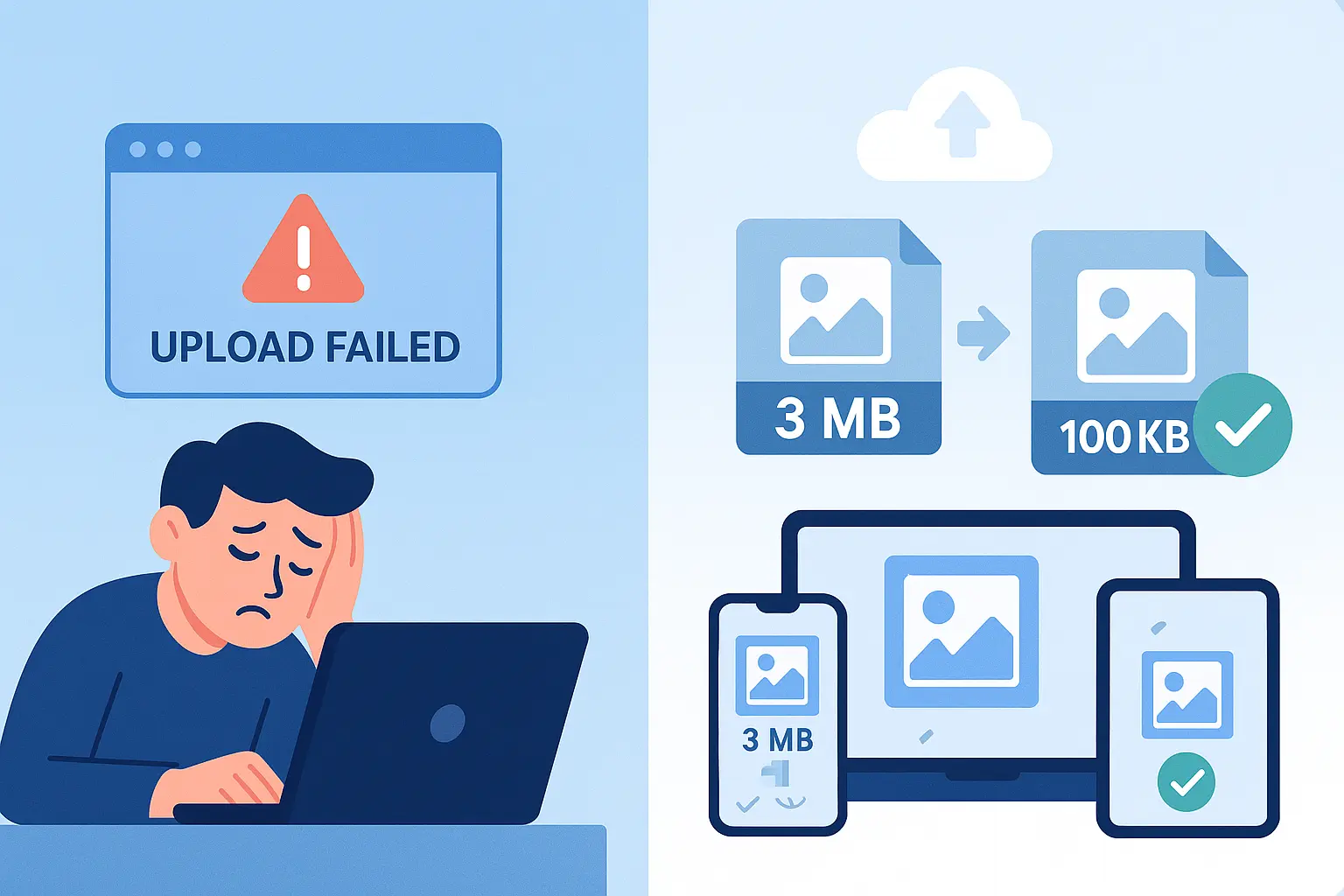
Table of contents
Introduction: The Dreaded Upload Error#
Upload errors are usually not random. When I test failed image uploads, the same problems appear again and again: file size is over the limit, the dimensions do not match, the format is unsupported, or the filename contains characters the portal does not accept.
This guide focuses on practical checks you can run before retrying an upload for a government portal, job application, email attachment, profile photo, or social media account.
The Top Reasons for Upload Failure#
1.1 Incorrect File Size (The Main Culprit)#
The #1 reason uploads fail is that the image is simply too large.
- Many portals require strict limits like 20KB, 50KB, or 100KB.
- Uploading a 3MB photo when the limit is 100KB? Instant rejection.
Fix it with the 20KB, 50KB, or 100KB resizers.
If the rejected file is a signature, use the Signature Resizer instead of a normal photo compressor. It can clean gray paper backgrounds, darken weak ink, crop the signature area, and resize the file toward the required KB limit.
1.2 Wrong Dimensions or Aspect Ratio#
Some systems reject images that are:
- Too wide or too tall (e.g., 6000px × 4000px photos).
- The wrong shape (e.g., square instead of rectangle).
Always check the official pixel requirements.
Use Resize Image Dimensions when a portal specifies width and height in pixels. Keep the aspect ratio unless the instructions explicitly require an exact shape.
1.3 Unsupported File Format#
Not all formats are accepted.
- Most sites want JPEG or PNG.
- Some don’t accept WebP or HEIC (common on iPhones).
If your iPhone photo is saved as HEIC, convert it first with the HEIC to JPG converter before resizing or uploading.
If a portal specifically asks for PNG, or you need a transparent background for a logo, stamp, or signature image, use the JPG to PNG converter before final upload.
1.4 Unclean Filename or Metadata#
- Filenames with special characters (
@,#,!) can break uploads. - Hidden EXIF metadata (camera info, GPS) sometimes triggers rejections.
Rename your photo to something simple like passport-photo.jpg.
1.5 The File Matches One Rule but Fails Another#
A photo can be under the KB limit and still fail because its dimensions, format, or filename are wrong. Check every requirement together:
- File size in KB or MB
- Pixel width and height
- Accepted format, such as JPG or PNG
- Photo, signature, or document upload field
- Filename and extension
Do not assume that changing only the file size will satisfy the portal.
Your Step-by-Step Fix-It Workflow#
Here’s the repeatable process I use when checking upload failures:
-
Check the Requirements
Look for the platform’s size, dimension, and format rules. -
Use a Dedicated Tool
Open Photo Resizer in KB. -
Resize and Compress
Select the 20KB, 50KB, or 100KB preset required by the portal. -
Change the Format if Needed
Save as JPEG or PNG for universal acceptance. If the source file is from an iPhone, convert HEIC to JPG first. If the destination asks for PNG, convert JPG to PNG and keep the PNG under the required KB limit. -
Prepare signatures separately if required
For exam or official-form signatures, prepare the signature separately so its crop, background, dimensions, and KB size match the instructions. -
Download and Retry
Check the saved file size in your file manager, then upload the optimized photo again.
Common Real-World Scenarios#
3.1 IBPS Photo Upload Problems#
If an IBPS photo upload fails, do not repeatedly upload the same file. Compare it with the requirements shown in the current application or notification:
- Confirm that you selected the photo field rather than the signature or document field.
- Check both the permitted KB range and pixel dimensions.
- Save the result in the requested JPG or JPEG format.
- Use a short filename such as
ibps-photo.jpg. - Reopen the downloaded file before uploading to confirm it is not corrupted.
The same checklist applies to an IBPS PO photo upload problem. Requirements can differ between recruitment cycles, so the current official instructions should override examples from older guides.
3.2 EPFO Profile Photo Not Uploading#
For an EPFO photo upload issue or an EPFO profile photo that is not uploading:
- Confirm the accepted format and current size limit shown by the portal.
- Convert HEIC, WebP, or another unsupported source to JPG when JPG is requested.
- Resize oversized camera dimensions before compressing the file.
- Remove unusual symbols from the filename.
- Sign out and retry in an updated browser if a compliant file still fails.
If the portal rejects a correctly prepared file, the cause may be a session, browser, or portal-side validation problem rather than the image itself.
3.3 Other Government Portal Uploads#
Visa, passport, recruitment, and identity portals often enforce several requirements at once. Their limits can vary by application type and can change over time.
Use the exact dimensions, format, and file-size range stated on the current official application page. Do not reuse a file prepared for another portal without checking its rules.
For the preparation workflow, see How to Resize a Photo for a Visa or Passport Application.
3.4 Social Media and App Uploads#
Social networks often compress images automatically, but an upload can still fail when the file is too large, corrupted, or in an unsupported format. Check the current requirements for the specific profile, post, cover, or advertisement placement.
Full breakdown: Resizing Images for Social Media and E-commerce: A Complete Guide.
3.5 Email Attachments#
Gmail allows up to 25 MB of attachments before larger files are added as a Google Drive link. Other providers and managed accounts may use different limits.
Resize each to roughly 200–500KB using the 500KB preset, or process several files together with the Bulk Image Resizer.
Conclusion: Fix the Upload Before You Retry#
Most upload errors boil down to four things:
- File too large,
- Wrong dimensions,
- Wrong format, or
- Bad filenames/metadata.
The fix is to resize, compress, convert, and rename the file before uploading again.
Use Photo Resizer in KB when you need a specific KB limit, and read the image optimization guide if you want the broader workflow behind file size, dimensions, and formats.

Frequently Asked Questions
Why does my image keep failing to upload?
The most common reasons are exceeding the KB/MB size limit, wrong dimensions, unsupported formats, or file naming/metadata issues.
How do I reduce the file size to upload my photo?
Use a KB-based tool like Photo Resizer in KB to shrink your photo to exact limits like 20KB, 50KB, or 100KB.
Which formats are usually accepted for uploads?
Most platforms accept JPEG and PNG. Some also allow WebP, but government portals often reject WebP or HEIC.
Why does my email block large photo attachments?
Email services like Gmail have a 25MB attachment limit. Compressing photos to 200–500KB each ensures smooth sending.
Can I fix upload errors on mobile?
Yes. Photo Resizer in KB works directly in your mobile browser without any apps or sign-ups.
Why is my photo not uploading on the IBPS or EPFO portal?
Check the current portal instructions for file size, pixel dimensions, format, filename, and photo or signature type. Resize or convert the file to match every rule, save it with a simple filename, and retry in a supported browser.