
Resize Photo to 50KB Online: Quality and Upload Guide
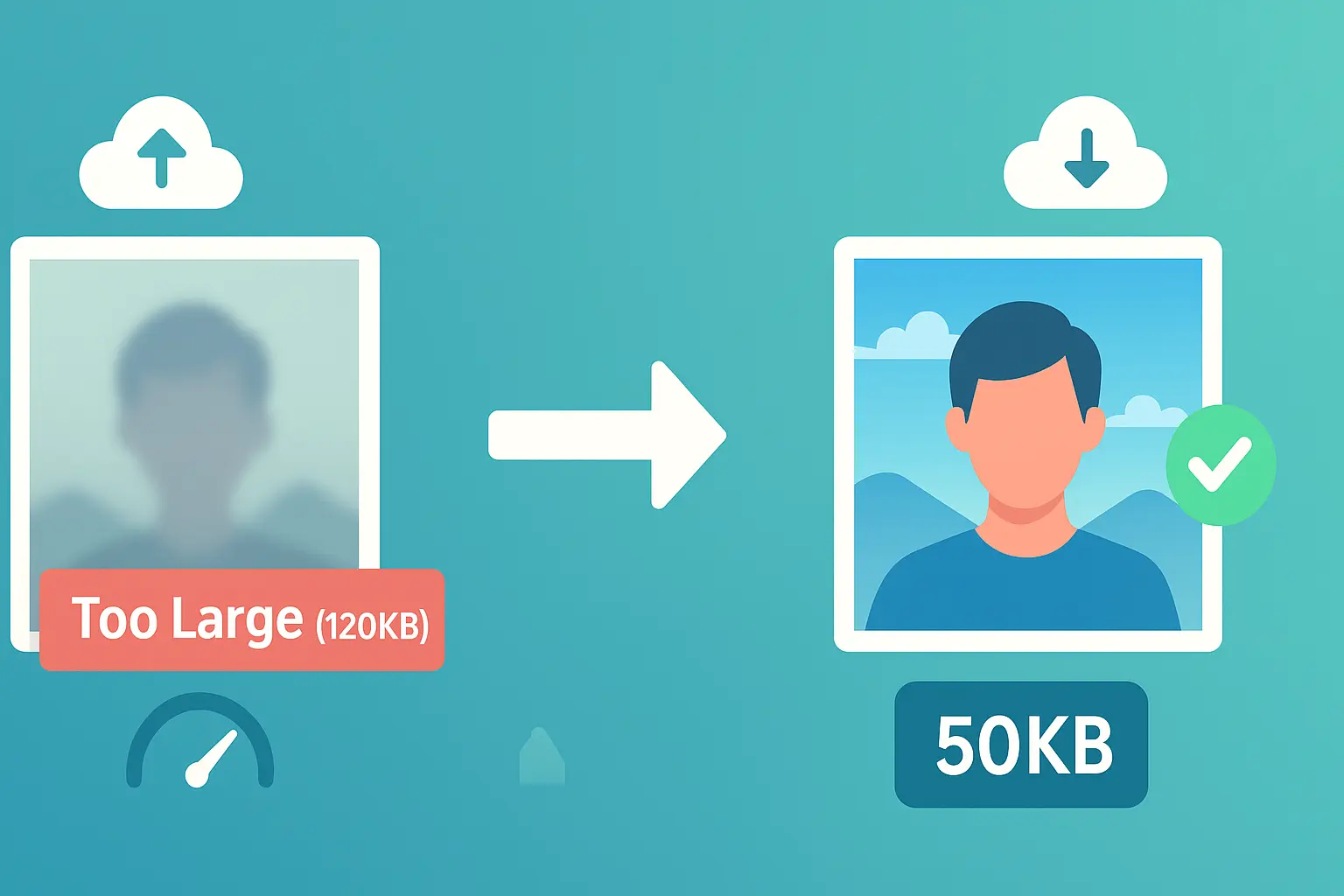
Table of contents
A 50KB resize photo request usually comes from an upload form with a strict file-size rule. The goal is not to make every result equal exactly 50.00KB. The practical goal is to create a clear image that stays at or below the stated maximum while also matching the required dimensions and format.
Use the 50KB photo resizer when you are ready to process the file. This guide explains how to prepare the source, preserve useful detail, verify the download, and troubleshoot a photo that is still rejected.
How to Resize a Photo to 50KB#
- Read the complete upload instructions.
- Check whether the destination requires JPG, JPEG, or PNG.
- Note any required pixel width, height, or aspect ratio.
- Open the Resize Photo to 50KB tool.
- Upload the best-quality source image available.
- Process the image with the 50KB target.
- Review the result and download it.
- Verify file size, dimensions, format, and filename before uploading.
If the form says maximum 50KB, an output below 50KB is normally compliant. If it gives a range, such as a minimum and maximum, the file must fall inside both limits.
What Changes When a Photo Becomes 50KB?#
Modern phone and camera photos often contain millions of pixels and several megabytes of encoded data. Reaching 50KB usually involves a combination of:
- Reducing pixel dimensions
- Compressing visual detail
- Removing metadata
- Using an efficient output format
Some image data must usually be discarded. “Without quality loss” should not be interpreted as mathematically lossless. A successful result preserves the important visible content—such as a face, signature, or document text—without obvious distracting artifacts at the size where it will be used.
Changing DPI metadata alone does not reduce the visible dimensions or meaningfully compress the photo. Pixel width, height, format, and image complexity are the important variables.
How to Keep Better Quality at 50KB#
Start with the clearest source#
Use the original file when possible. A blurry screenshot or heavily compressed social-media copy cannot recover missing detail.
Crop unnecessary background#
Removing empty background gives the encoder more of the 50KB budget for the subject. Keep the required framing and do not crop away important edges.
Use practical dimensions#
A 4000×3000 px photo contains far more pixels than most form uploads need. If the portal provides exact dimensions, match them. If it only provides a KB limit, reduce oversized dimensions while keeping the subject readable.
Use Resize Image Dimensions first when you must set a particular width and height.
Choose the requested format#
JPG is usually efficient for regular photographs. PNG is useful for transparency, logos, line art, and some signatures, but detailed PNG images can stay much larger. Never change format if the destination explicitly requires another one.
If an iPhone source is HEIC and the form requires JPG, use the HEIC to JPG converter before the final 50KB workflow.
Why a Photo May Not Reach 50KB#
The output may remain above 50KB when:
- The required dimensions are large
- The image contains heavy texture or camera noise
- PNG transparency must be preserved
- The source is a screenshot with detailed text and graphics
- The portal requires a format that compresses less efficiently
Try these fixes in order:
- Crop unused background.
- Reduce dimensions if the upload instructions allow it.
- Use JPG for a normal photo when JPG is accepted.
- Start from the original rather than repeatedly recompressing an old copy.
- Set a slightly lower target if the portal appears to round file sizes differently.
Do not keep compressing until the subject becomes unreadable. If the required dimensions and format make 50KB unrealistic, recheck the current portal instructions before sacrificing more quality.
Why a Valid 50KB Photo Can Still Fail#
File size is only one validation rule. A portal may reject the result because of:
- Wrong pixel dimensions
- Wrong aspect ratio
- Unsupported file extension
- File size below a required minimum
- Unusual filename characters
- A photo uploaded into a signature or document field
- Browser session or portal-side validation errors
Rename the file with simple letters, numbers, and hyphens, such as profile-photo-50kb.jpg. Open the downloaded image once to confirm it is readable, then retry the correct upload field.
For IBPS, EPFO, government forms, and other portal-specific failures, follow the image upload troubleshooting checklist.
20KB, 50KB, or 100KB: Which Target Should You Use?#
Use the value stated by the destination. Do not select 50KB simply because it looks like a good compromise.
- Use the 20KB resizer when the maximum is 20KB.
- Use the 50KB workflow when the maximum is 50KB.
- Use the 100KB resizer when the form allows up to 100KB.
A larger allowed file size usually provides more room for detail, but a larger file does not fix incorrect dimensions, framing, or format.
Verify the Download Before Uploading#
Check these four items:
- File size: Is it below the maximum and above any minimum?
- Dimensions: Does width × height match the instructions?
- Format: Is the extension accepted?
- Visible quality: Are the important details still clear?
On desktop, use file properties or Get Info. On mobile, use the Files app or file-information view. Check the downloaded file rather than relying only on the original filename.
Conclusion#
To resize a photo to 50KB successfully, treat file size as one part of the upload requirement. Start with a clear source, crop unnecessary background, use suitable dimensions and format, then verify the downloaded result.
When you are ready, open the 50KB photo resizer. If the file meets 50KB but the upload still fails, check the portal’s dimensions, format, filename, and field requirements before compressing it again.

Frequently Asked Questions
How do I resize a photo to 50KB?
Open the 50KB resizer, upload the image, process it with the 50KB target, inspect the result, and download the file.
Will the result be exactly 50.00KB?
A 50KB target normally means the output should stay at or below the limit. The exact byte count can vary by image, format, and encoding.
Can I resize a photo to 50KB without losing quality?
Reducing a large photo to 50KB requires discarding some image data. Good resizing can preserve useful visible detail, but completely lossless 50KB compression is not guaranteed.
Can I resize a PNG to 50KB?
You can try, but detailed or transparent PNG files may not reach 50KB at the requested dimensions. If the destination accepts JPG, JPG is often better for regular photos.
Why is my 50KB photo still rejected?
The portal may also require specific pixel dimensions, format, filename, aspect ratio, or a minimum file size. Check every current upload rule, not only the maximum KB value.